What "System Data" actually is — and why 114 GB can hide in a Trash that looks empty

Someone posted on Apple's own support communities with a number that makes no sense. Storage settings told him 148 GB of System Data. Every folder he could actually open added up to about ten. His question, in his words: "How is this possible and more importantly, how can this be fixed?"
The answer on his machine was that his Trash was not empty. Finder showed it empty. It had 114 GB in it.
That is not one broken Mac. The same shape turns up on Apple's forums going back years — a Trash that reads as empty on the desktop while the files are still there and still counted, usually because the permissions on the folder are wrong and Finder cannot list what is inside. The space is gone either way. It just gets filed under a heading nobody can open.
What "System Data" actually is
It is not a thing. It is the leftovers.
The storage screen sorts your disk into named categories — Applications, Documents, Photos, Music, Mail, macOS — and everything it cannot file under one of those becomes System Data (older versions of macOS called it "Other"). By Apple's own description that is logs, caches, virtual-memory files and other resources the system is currently using, plus temporary files, fonts, app support files and plug-ins. Apple also says, plainly, that you cannot manage what is in it: macOS manages it, and the size moves around on its own.
Two things follow, and between them they explain why this one category drives people to reinstall their Mac.
It is one number with no itemisation. Every other row on that screen can be opened and looked at. This one cannot, so a hundred gigabytes of specific, nameable files arrives as a single grey bar.
It contains completely different kinds of thing. A browser cache that rebuilds itself in a day sits in the same bucket as an app's stored data, a virtual machine's disk image, and a Trash folder holding files you deleted deliberately. "System Data is 148 GB" tells you nothing about which of those you are looking at, and the difference is the entire question.
What the internet will tell you to do about it
On that 148 GB thread, the accepted fix was: grant Terminal Full Disk Access, run a recursive sudo delete against the Trash folder, then three more commands changing that folder's ownership and permissions. It worked. It is also a recursive delete running as root, written by a person who cannot see your machine, pasted by a person who — by the nature of the question — has no way to evaluate it. There is no undo on that path, and no log of what went.
The other half of the genre is the listicle: empty ~/Library/Caches wholesale, empty the system logs, strip the language files. Some of that is harmless. The problem is that nobody writing it knows which of your Application Support folders holds something that does not come back — a licence file, an app's local database, the only copy of some project's settings — because that depends on which apps you installed, not on which article you read.
Neither of those is malice. It is just advice given without sight of the disk it is about. Which is the argument for looking first.
Look before you delete
In this order, and none of it needs Terminal.
1. Open the Trash the long way. In Finder: Go → Go to Folder → ~/.Trash. That is a read-only look at the real folder. If things appear there that the Trash icon in the Dock says are not, you have found your gap. If Finder itself cannot list it, that is a permissions problem — and knowing that is worth more than any amount of guessing.
2. Empty it the ordinary way. Trash icon, Empty. If that does the job, you are done and you never needed a tool.
3. Then look inside your home folder. The part of System Data you can actually do something about mostly lives in ~/Library — Application Support, Containers, Caches, and, if you write software, Developer. Those four are visible, attributable, and yours.
4. Leave the rest to macOS. Local Time Machine snapshots and other system-managed space usually show up as purgeable rather than free, and that part is not yours to hand-delete. It is not ours to touch either — more on that below.
Where MAIMU fits, and where it does not
I make a Mac app called MAIMU. It maps your home folder, names what is taking the space, and tells you which of it is safe to lose. Looking is free — the scan, the map, every finding — and that matters here, because for this particular problem looking is the whole answer.
On the Trash, specifically: MAIMU measures ~/.Trash on every scan, by walking the real directory entries rather than asking Finder what it thinks is there. The Cleanup screen prints it as one line — "X sitting in ~/.Trash — trashing only stages the reclaim" — and counts it into the reclaimable total. On the machine in that forum thread, the first free scan would have printed 114 GB, and the mystery would have lasted about ninety seconds.
Two caveats, because this is exactly the kind of claim that deserves them.
Reading the Trash needs Full Disk Access, and MAIMU says so itself rather than failing quietly: the welcome screen and Settings both show whether it has been granted. Without it, that line reads zero. So yes — this ends with granting Full Disk Access to something. The difference from the Terminal route is what the thing can then do: MAIMU can only delete paths it surfaced and you ticked (there is no text field anywhere in the app where a path could be typed), it refuses everything outside your home folder, anything over 250 MB can only ever be moved to the Trash and never hard-deleted, and every deletion is appended to a plain-JSON log in ~/Library/Application Support/MAIMU/ that you can read.
And if Finder cannot list your Trash, MAIMU cannot empty it either. Its Empty Trash button asks Finder to do the emptying, so a broken-permissions Trash defeats it the same way. What it gives you in that case is the number — which turns "148 GB of something" into "114 GB in one folder, and a permissions problem". That is a question with a known answer instead of a mystery worth reinstalling over.
The part it deliberately cannot see is everything outside your home folder. There is no snapshot management in it, no purgeable-space handling, no reaching into /private/var. That is not a gap waiting to be filled: refusing to touch anything outside home is the rule that makes the app safe to hand Full Disk Access in the first place, and it is enforced in the code rather than promised on a page.
What it looks like on a real disk
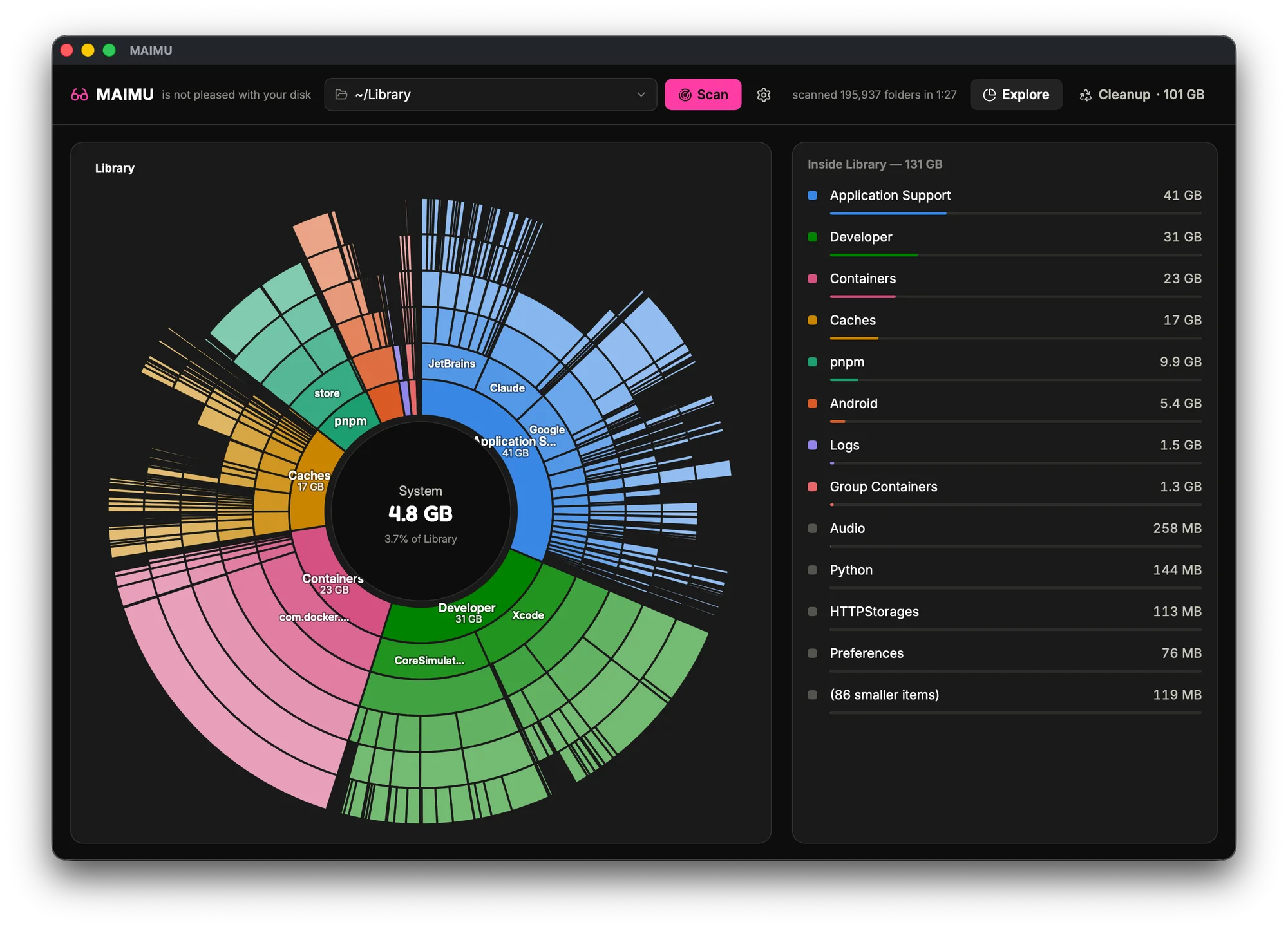
That is my own Mac. Every one of those four names lands under System Data as far as the storage screen is concerned, and every one of them is an ordinary folder you can open.
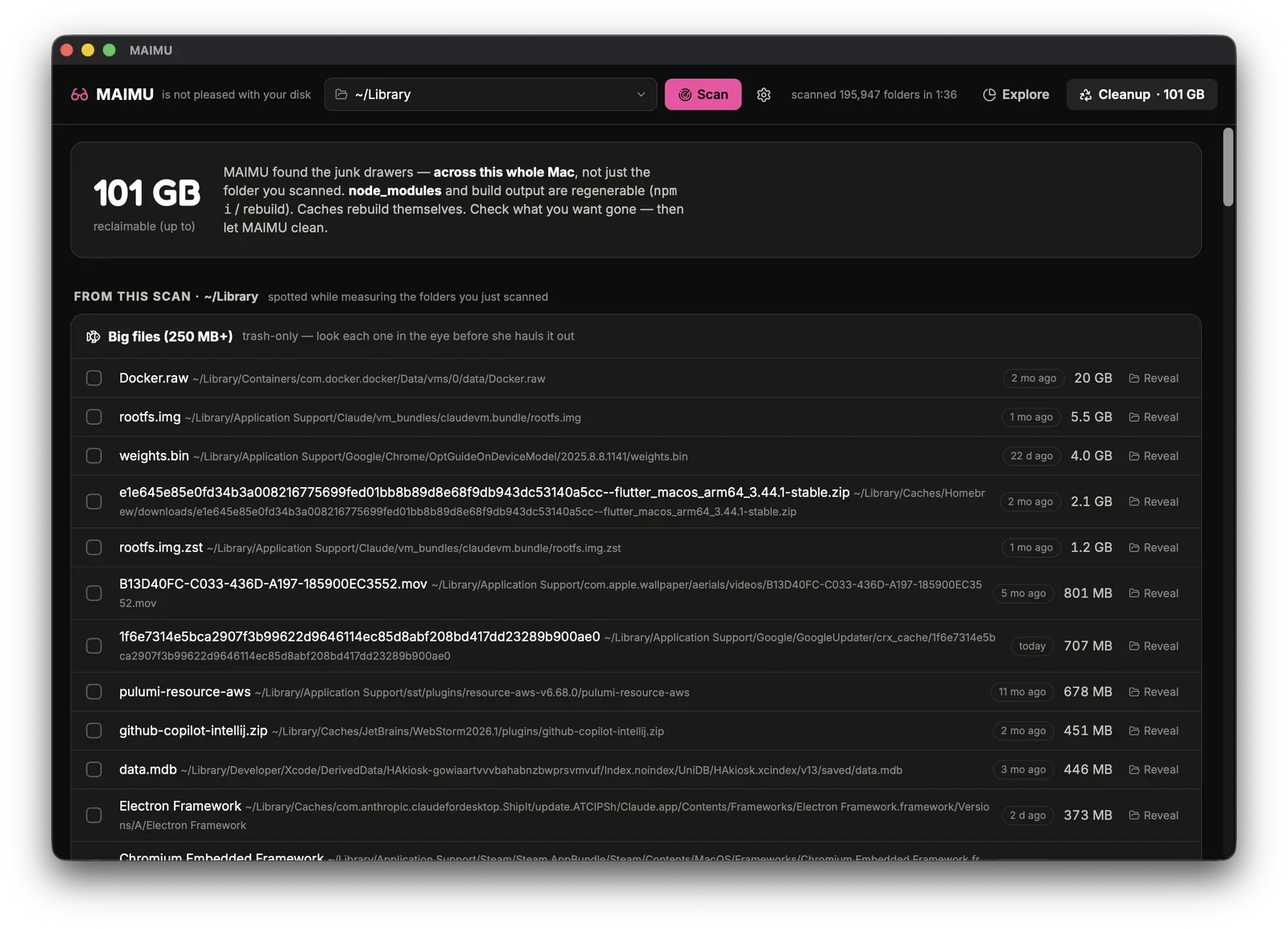
Same disk, sorted by size instead of by shape. A 20 GB Docker disk image. Four gigabytes of on-device model that Chrome downloaded. And 801 MB of Apple's own aerial wallpaper videos, cached in Application Support because at some point the screensaver played one. All System Data. All perfectly explicable, once something bothers to put a name on them.
Trashing only stages the reclaim
The last thing, and it is the reason this post exists at all.
Moving something to the Trash does not free the space. It stages the reclaim; the disk gets it back when the Trash is emptied. Any cleanup tool that reports gigabytes freed while those gigabytes are sitting in your Trash is quoting you a number, not a fact — which is why MAIMU prints the Trash total on the screen where it would be far more flattering to leave it out.
That is also the general rule for this whole category of problem. The Mac is not hiding your disk from you. One screen is refusing to itemise it, and the fix is to look, not to guess.
MAIMU is a free download and the scanning half stays free forever — cleaning is a one-time $9.99 if you ever want it. If you bought a 256 GB Mac and live at 95% full, this page is the version of this argument written for you; if the folders above looked familiar because you write software, the developer's map is here.