Where your Mac's disk actually went
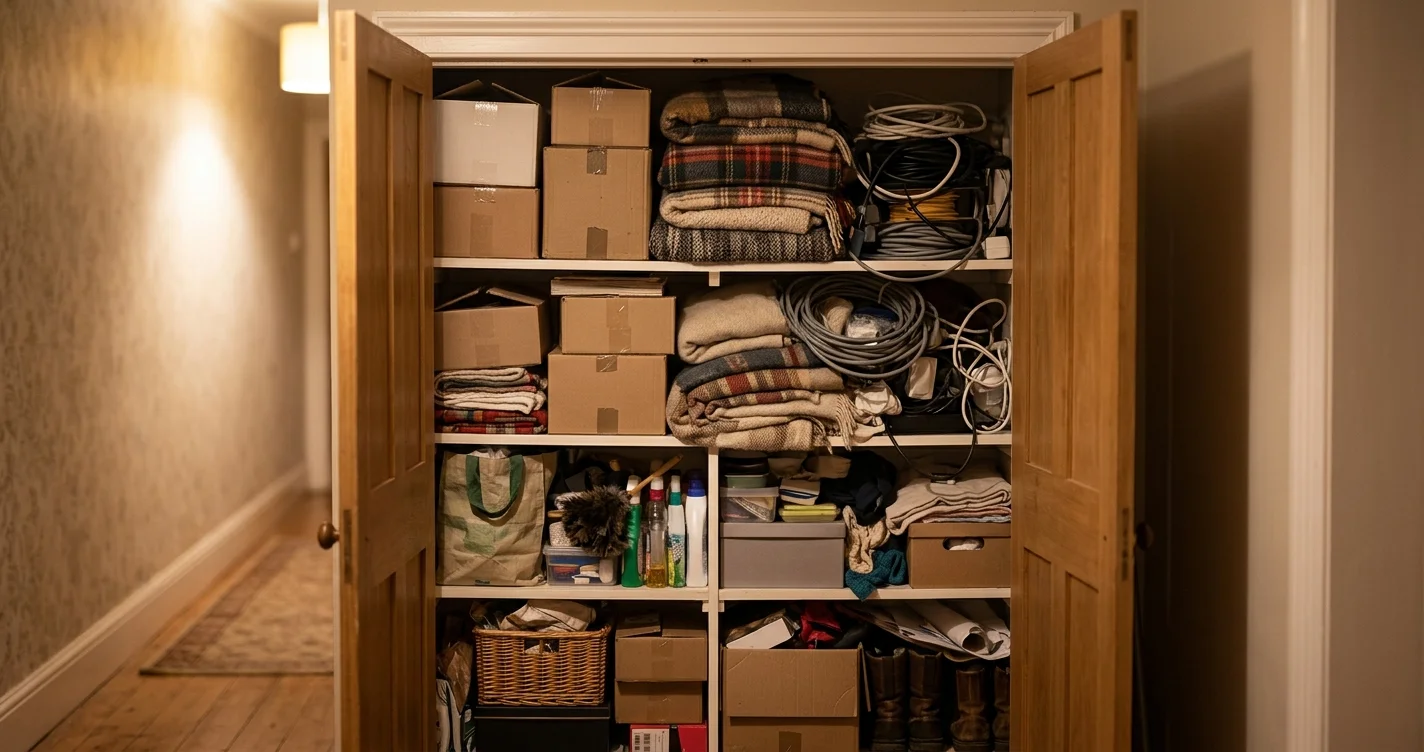
macOS will tell you the disk is full. It will not tell you what filled it. Open Storage settings and most of the missing space is filed under System Data — a bucket it declines to itemise, and the one people end up reinstalling their Mac over.
If you write software on that Mac, the honest answer is boring: it is almost always the same handful of directories, and most of them come back with one command. That is the whole trick. The directories that regrow are the ones that are safe to delete — and the ones that will be back next month.
Here is the map, in roughly the order it turns out to be the answer.
1. node_modules, once per project
Not one per machine. One per project, per checkout, per abandoned experiment. A dependency tree you installed for an afternoon in 2024 is still sitting on the disk at full weight.
find ~/dev -maxdepth 4 -type d -name node_modules -prune -exec du -sh {} +
Finding them is easy. Knowing which ones are dead is the actual problem, and file timestamps lie about it: a checkout, a branch switch or an editor indexing pass all touch mtime without you having worked on anything. The better question is when you last committed. That is one command per project:
git -C ~/dev/some-project log -1 --format=%cr
A project you have not committed to since spring is a project whose node_modules you can trash today and rebuild with npm i on the day you come back to it.
2. Build artifacts, one per build
The debris every project regrows the next time you run the build: dist, build, out, .next, .nuxt, .output, .turbo, .parcel-cache, coverage, .serverless, storybook-static, target, .angular.
Individually small enough to ignore. Multiplied by every repo you have cloned this year, not small at all.
3. Xcode, which is its own weather system
Four different directories, and — this is the part that matters — they are not equally safe:
| Path | What deleting it costs |
|---|---|
~/Library/Developer/Xcode/DerivedData |
A rebuild. Delete freely. |
~/Library/Developer/CoreSimulator/Caches |
Rebuilt automatically. Delete freely. |
~/Library/Developer/Xcode/iOS DeviceSupport |
Re-created next time you plug that device in — over USB, slowly. |
~/Library/Developer/Xcode/Archives |
Old app archives. Keep anything you might still need to re-distribute or symbolicate a crash against. |
~/Library/Developer/CoreSimulator/Devices |
Real simulator state. Delete these through Xcode → Devices & Simulators, not with rm. |
DerivedData is the one everybody knows. The bottom three are where a size-sorted list will happily walk you off a cliff.
4. Package manager caches
Every tool keeps its own, and none of them prune:
~/.npm/_cacache · ~/.yarn/cache · ~/.yarn/berry/cache · ~/.bun/install/cache · ~/Library/pnpm/store · ~/.pnpm-store · ~/.gradle/caches · ~/.gradle/wrapper · ~/.cocoapods/repos
Plus whatever is sitting in ~/Library/Caches and ~/.cache — one directory per app that ever wanted one, going back to apps you have since deleted.
The cost of clearing any of these is bandwidth, not work. Your next install is slower once. That is the entire downside.
5. Node versions you stopped using
~/.nvm/versions/node holds a complete toolchain per version. Six installed versions is six copies, and you are running one of them.
6. The big files only you can judge
Screen recordings. VM images. That dataset. A .dmg you downloaded once. Anything past a couple of hundred megabytes is worth seeing, and no tool on earth can tell you whether you still need it.
7. And the ones a cleaner should keep its hands off
- Docker Desktop — reclaim it with
docker system prune -af --volumes, not by deleting its container directory. - OrbStack —
orb prune, or its own UI. ~/Library/CloudStorage— Google Drive, iCloud and friends. Most of what looks enormous there is placeholder files that take almost no real space, and "cleaning" it means fighting the sync client.
8. The Trash, which is not a metaphor
Moving something to the Trash stages the reclaim. The space comes back when you empty it. A cleanup tool that reports gigabytes freed while your Trash quietly holds them is telling you a number, not the truth.
Size is not the same as safe
That is the thing every disk visualizer gets to skip. A sunburst chart is genuinely good at where the space is — and then it hands you a 9 GB directory and no opinion, which is exactly the moment you need one. Sorting by size puts iOS DeviceSupport and DerivedData next to each other, and they are not the same kind of thing at all.
The useful taxonomy is three buckets, not one:
- Regrows by itself — caches, DerivedData, build output. Delete without thinking.
- Regrows at a price you should know first — DeviceSupport (a slow re-pair), simulator devices (real state), archives (gone for good).
- Only you know — the big files. A tool's job here is to surface them and then shut up.
What I'm building
I'm making a Mac app called MAIMU that does exactly this: scans, draws the sunburst, and then — the part that took the actual work — tells you which of those gigabytes are safe to delete, and why, in the app, before you touch anything. It is out now.
Because a cleanup app is asking for a lot of trust from a stranger, its safety rules are enforced in code rather than promised in marketing:
- It can only delete paths it surfaced itself and you confirmed. There is no free-form delete anywhere in the app — not even a text field where a path could go.
- It refuses to touch anything outside your home folder. External volumes are explorable, never deletable.
- Deleting means Move to Trash, instantly reversible. Permanent delete is opt-in, per action — and files over 250 MB can only ever be trashed, never hard-deleted, whatever you click.
- Every deletion is appended to a local log — what, when, how much — in
~/Library/Application Support/MAIMU/, plain JSON, yours to read. - Nothing leaves the machine. No account, no telemetry, no cloud. The app's own server binds to
127.0.0.1and talks to nobody else. - The version of node you are actually running is protected and never offered for deletion. Neither is anything under
.git.
Seeing everything is free — the full scan, the sunburst, every finding, the table view. Paying (once — $9.99, not a subscription) unlocks the part that deletes.
One caveat about the illustrative scan on the homepage: it is an illustration. I am not going to quote you someone else's disk as if it were a measurement of yours. Run the du and find commands above and you will have real numbers for your own machine in about a minute, with or without me.
The free download is on the homepage — the scan, the sunburst and every finding cost nothing. And with or without it: check ~/Library/Developer/Xcode/DerivedData first. It is usually the fastest gigabytes you will ever get back.